How can I manage my SparkChess Premium Live subscription or change the payment method?
You can easily manage your subscription. You can cancel it at any time and your can create a new one. You can also change the payment method.
Sign In to SparkChess Premium Live at https://premium.sparkchess.com using your email & password.
Once SparkChess launches, at the top of the screen you’ll see a semi-transparent arrow button. Click on it to reveal the manage drawer.


Now click on Manage Subscription. A new page will be shown:
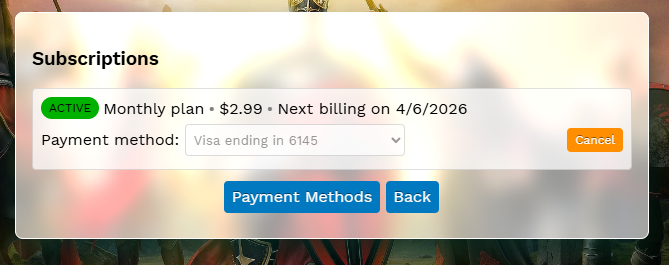
This screen shows your subscriptions. Usually you’ll have one Active subscription, shown with a green label, like above. You may however have past Canceled subscriptions, or even Pending ones.
Pending subscriptions are not yet active. They can appear when you cancel an existing subscription and then create a new one. The current subsctiption remains in effect until its due date, and the new subscription is Pending until that date, wehn it becomes active.
On the subscription you can easily see the amount, nexrt billing date, and the payment method.
How to cancel
To cancel a subscription, just click on the orange Cancel button. While we’d be sad to see you go, your peace of mind is important to us – there are no “dark patterns” to make it hard for you to cancel. We believe that you’ll never get tired of SparkChess!
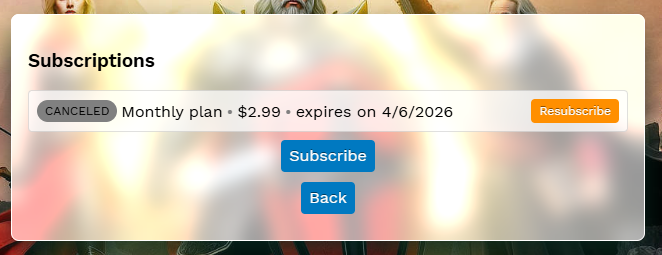
As you can see, you can easily resubscribe or create a new Subscription at any time.
How to add, set, and remove payment methods
To change the payment method, just click on Payment Methods. You’ll see a list of payment methods. usually it’s just one, designated “Default” and “In use”. Click on Add Payment Method and you’ll see a simple form:
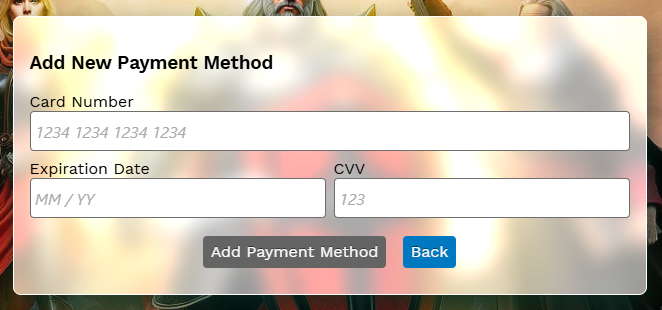
Fill it in and click on Add Payment Method. It will be saved.
Now the list will show both the old and the new method:

As you can see, the newly added card is the new default, but the old one is marked in use. You can delete any card not in use – see the red Delete button.
To assign the new card to your subscription, click Back to return to the first screen.
You can now assign your preferred payment method to the subscription:
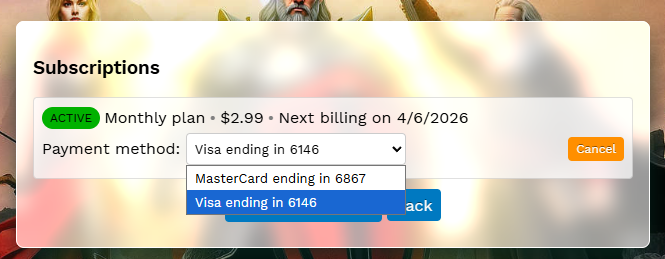
It’s a straightforward way to replace an expired card for example.